Teams
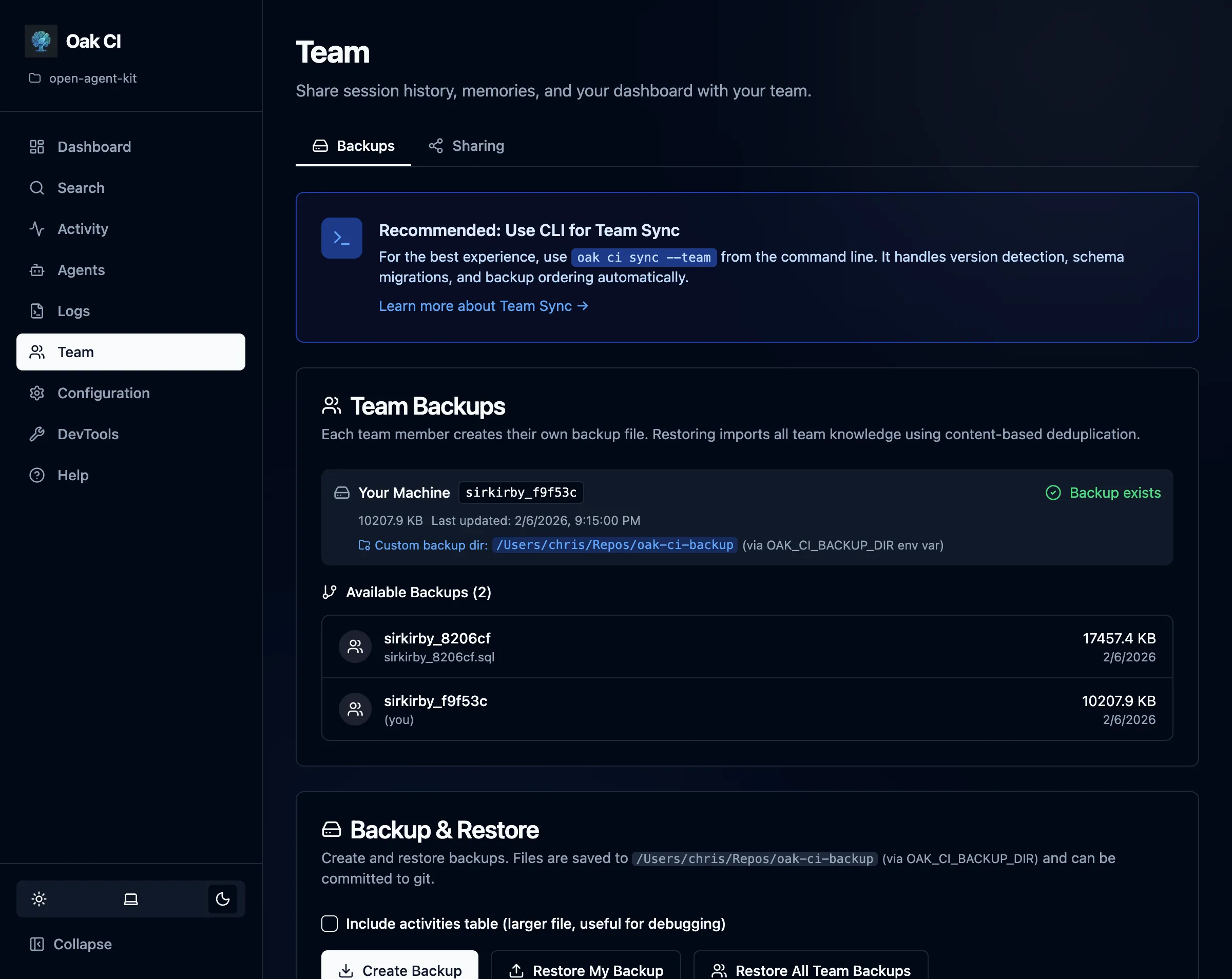
The Teams page manages how you preserve and share Codebase Intelligence data across machines and developers.
Team Backups
Section titled “Team Backups”Each machine produces its own backup file named {github_user}_{hash}.sql, stored in oak/history/ (git-tracked by default). This means every developer on the team has their own backup alongside the source code.
What Gets Backed Up
Section titled “What Gets Backed Up”| Data | Included | Notes |
|---|---|---|
| Sessions | Always | Full session metadata including parent/child links |
| Prompt batches | Always | User prompts, classifications, plan content |
| Memories | Always | All observations (gotchas, decisions, bug fixes, etc.) |
| Activities | Configurable | Raw tool execution logs — can be large. Controlled by backup settings or --include-activities flag |
Backup Location
Section titled “Backup Location”The default backup directory is oak/history/ inside your project. This is designed to be committed to git so backups travel with the codebase.
To use an alternative location (e.g., a secure network share):
- Set the
OAK_CI_BACKUP_DIRenvironment variable, or - Add it to your project’s
.envfile
Deduplication
Section titled “Deduplication”Backups use content-based hashing for cross-machine deduplication:
| Table | Hash Based On |
|---|---|
| sessions | Primary key (session ID) |
| prompt_batches | session_id + prompt_number |
| memory_observations | observation + type + context |
| activities | session_id + timestamp + tool_name |
Multiple developers’ backups can be merged without duplicates.
Automatic Backups
Section titled “Automatic Backups”The daemon can create backups automatically on a configurable schedule. This ensures your CI data is always preserved without manual intervention.
Enabling Automatic Backups
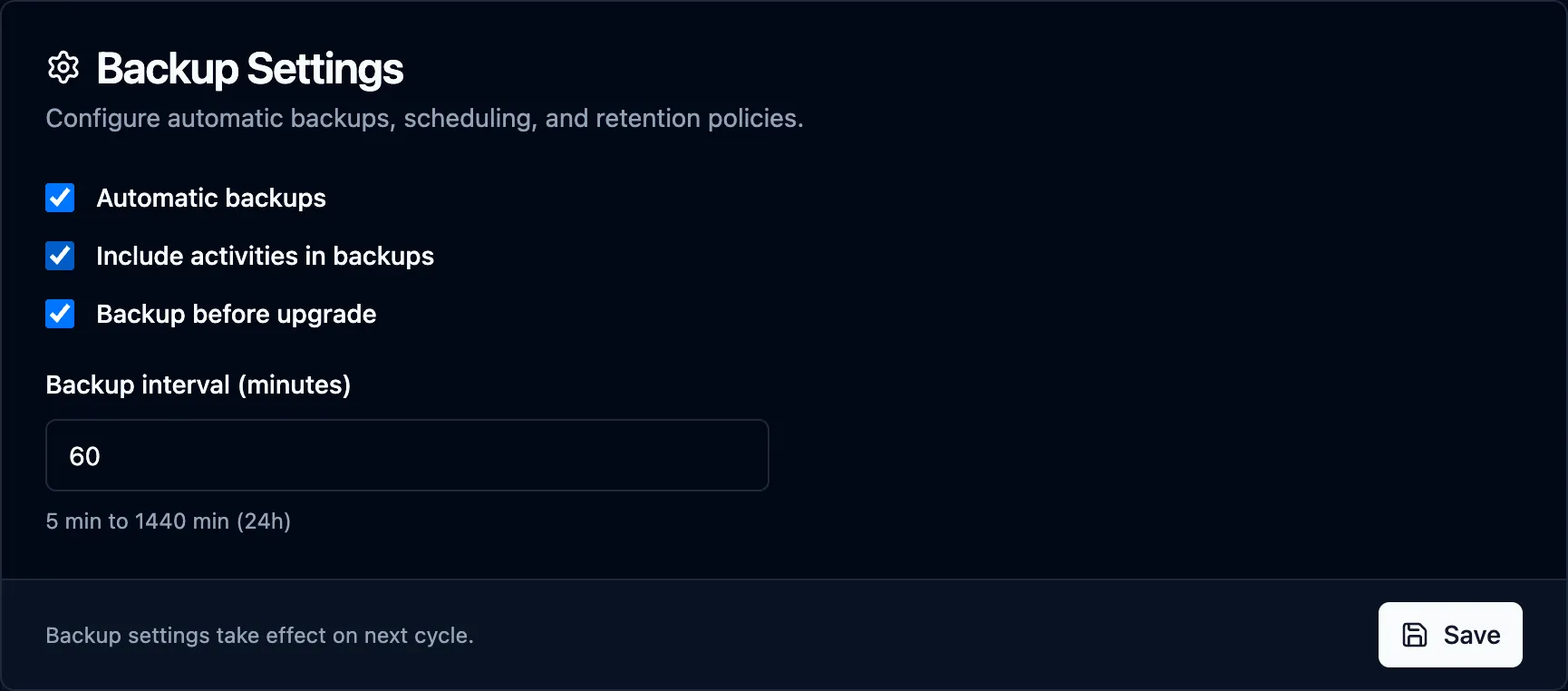
Section titled “Enabling Automatic Backups”Automatic backups are disabled by default. Enable them from the Backup Settings card on the Teams page, or via the configuration file:
# In .oak/config.{machine_id}.yamlcodebase_intelligence: backup: auto_enabled: true interval_minutes: 30Settings
Section titled “Settings”| Setting | Default | Description |
|---|---|---|
| Automatic backups | Off | Enable periodic automatic backups |
| Include activities | On | Include the activities table in backups (larger files) |
| Backup before upgrade | On | Automatically create a backup before oak upgrade runs |
| Backup interval | 30 min | How often automatic backups run (5 min to 24 hours) |
The backup interval field appears when automatic backups are enabled. Changes take effect on the next backup cycle.
How It Works
Section titled “How It Works”- The daemon runs a background loop that checks the interval and creates backups automatically
- Each automatic backup replaces the previous one for your machine (one file per machine)
- The “Include activities” setting applies to both automatic and manual backups when no explicit flag is given
- The CLI
--include-activitiesflag overrides the configured default
Pre-Upgrade Backups
Section titled “Pre-Upgrade Backups”When Backup before upgrade is enabled (the default), running oak upgrade automatically creates a backup before applying any changes. This provides a safety net in case an upgrade modifies the database schema.
Backup & Restore
Section titled “Backup & Restore”Creating Backups
Section titled “Creating Backups”oak ci backup # Standard backup (uses configured defaults)oak ci backup --include-activities # Include raw activities (overrides config)oak ci backup --list # List available backupsOr use the Create Backup button on the Teams page in the dashboard.
Restoring
Section titled “Restoring”Restore your own backup or any team member’s backup:
oak ci restore # Restore your own backupoak ci restore --file oak/history/teammate_a7b3c2.sql # Restore a teammate's backupAfter restore, ChromaDB is automatically rebuilt in the background to re-embed all memories with the current embedding model.
Schema Evolution
Section titled “Schema Evolution”- Older backup → newer schema: Missing columns use SQLite defaults (usually NULL). Works automatically.
- Newer backup → older schema: Extra columns are stripped during import. A warning is logged but import proceeds. No data loss for columns that exist in both schemas.
Team Sync (oak ci sync)
Section titled “Team Sync (oak ci sync)”The recommended way for teams to stay in sync. This single command handles the full workflow:
oak ci sync # Standard syncoak ci sync --full # Rebuild index from scratchoak ci sync --team # Merge all team backupsoak ci sync --dry-run # Preview without applying changesWhat sync does
Section titled “What sync does”- Stop daemon — Ensures clean state for data operations
- Restore backups — Applies your personal backup
- Start daemon — Brings the daemon back up
- Run migrations — Applies any schema changes from upgrades
- Create fresh backup — Saves current state
| Flag | Description |
|---|---|
--full | Rebuild the entire code index from scratch |
--team | Also merge all team member backups from oak/history/ |
--include-activities | Include the activities table in backup (larger file) |
--dry-run | Preview what would happen without applying changes |
Sharing
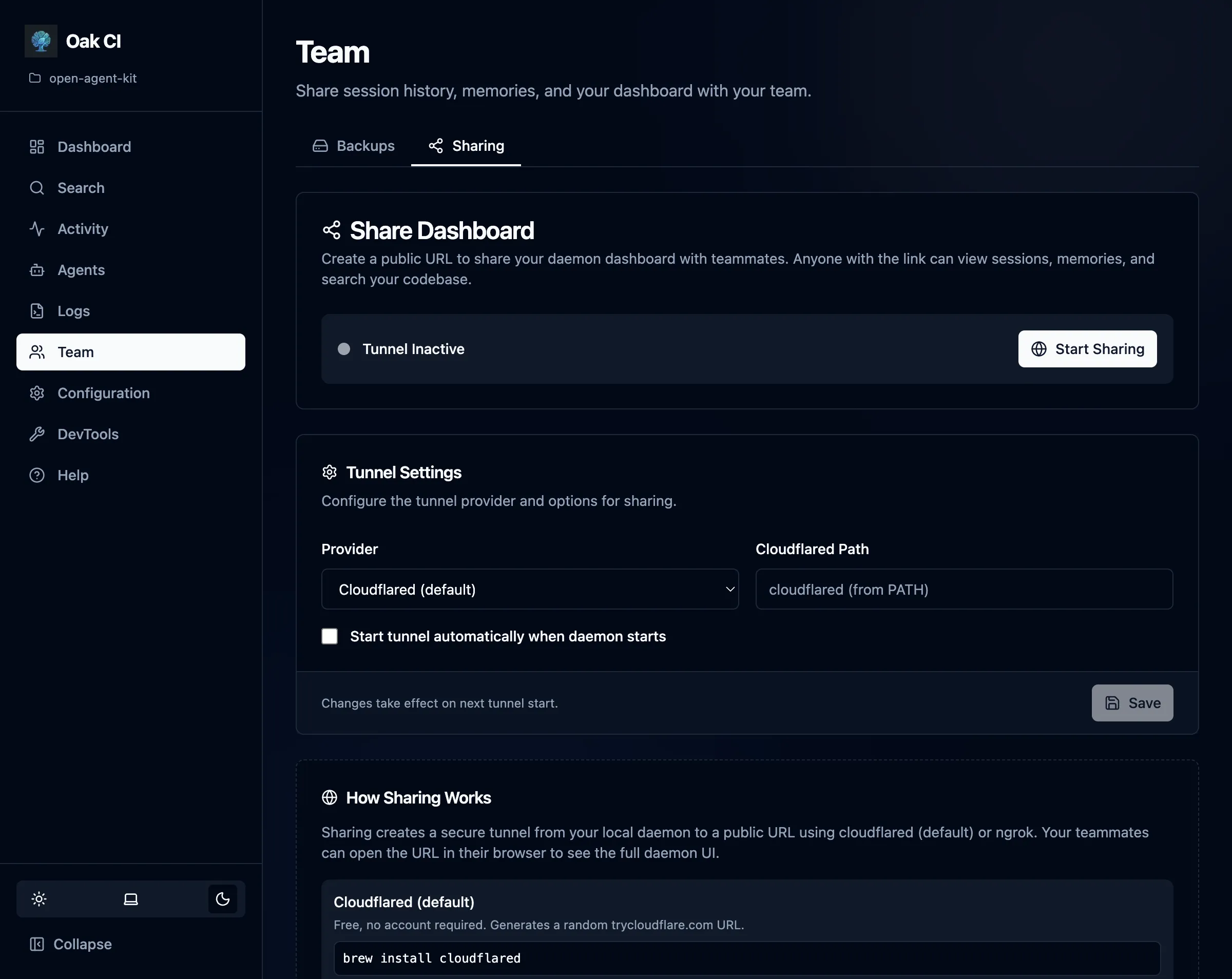
Section titled “Sharing”Share your local daemon instance with teammates using tunnels. This gives them read access to your dashboard, search, and session data — useful for pair programming or code review.
Tunnel Support
Section titled “Tunnel Support”OAK supports Cloudflare and ngrok tunnels:
oak ci tunnel-start # Start a tunneloak ci tunnel-stop # Stop the tunneloak ci tunnel-status # Check tunnel statusoak ci tunnel-url # Get the shareable URLAuto-Start
Section titled “Auto-Start”Configure tunnels to start automatically with the daemon by setting tunnel.auto_start in the configuration.
Use Cases
Section titled “Use Cases”- Single developer, multiple machines: Keep your CI data in sync across work and personal machines
- Team code review: Share a session with a teammate so they can see exactly what the agent did
- Future: Lays groundwork for shared OAK instances where a team runs a single daemon